Tuesday, January 11, 2011

How to Run Multiple Yahoo! Messenger Accounts on Your PC [Registry Hack]

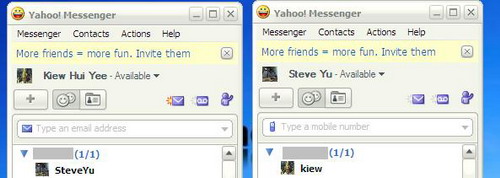
If you are wondering how to run multiple Yahoo! Messenger accounts within the same PC, here’s how it can be done by just applying a simple registry hack.
  1. Go to Start > Run.
  2. In the Run box, type regedit and click OK button to launch the Registry Editor.
  3. Now, navigate to HKEY_CURRENT_USER > Software > Yahoo > Pager > Test.
  4. On the right pane, right click , choose New > DWORD value 

5. Rename the new registry key as Plural.


6. Double click on the “Plural” registry key and assigns 1 as the value data.


Now, you can login to multiple Yahoo! Messenger accounts on your PC. If you want to login to two YM accounts, you will need to launch the application twice in order to get two login screens.


To disable or cancel this hack, just proceed and delete the “Plural” registry key.

Yahoo Room Booter - Y! WhiteOut ( Y!Apocalyse Update )

Yahoo Room Booter - Y! WhiteOut ( Y!Apocalyse Update)


Craziest Yahoo Messenger Room Booter ! One yahoo toy to play with .

+ Multi Yahoo Login Bot Booter using SSL login

+ Multi Yahoo Join Chat Room

+ Charge - Release Captcha

+ Disconnect Single Victim

+ Yahoo Room Boot


Login 10 Yahoo bots then join to 10 Yahoo chat room all at one ( 1 bot 1 room ) to get all user in 10 room !

Single Yahoo messenger Victim Option :

1. Silent DC Yahoo messenger
2. Y!A DC
3. Yahoo Room Invite - Join bot on one room to use this packet
4. Yahoo Conference DC
5. Yahoo Messenger Add DC
6. Yahoo Proto DC

Yahoo Messenger Room Boot Option :

1. Messenger Dc - Freeze all Yahoo messenger User Silently
2. Yahoo messenger Conference Freeze
3. Skull Audible Freeze
4. Add All User Freeze
5. Script Freeze
6. games Freeze


Feature :

1. Auto Yahoo Booter, kicks out when user Join
2. Save Yahoo User name list
3. Mode grab user, as long bots in room, program will
grall all user join , no leaves will show
4. Join bots to one Yahoo chat room
5, Join Bots to multi room , 1 bot per one room
6. Boot user not in room


How to use :

Ex Login 10 Bots, then add or load room list as much as your bots login !
Prepare Join then Join Bots !
When captcha show simply click the link then captcha will automatically show up
Type captcha then Enter do it till no more captcha ,
when all captcha alreay typed then just click SEND
ALL Bots will join room all at one ! and all user in room will grabbed !
( Charge - Release Captcha Join )

If You gonna join all bot in only one room, simply type the Room then join, no need to add
room to the list !

Download Yahoo Room Booter
http://www.easy-share.com/1912770658/yahoo_room_booter.exe

Yahoo Messenger Room Booter: Messenger Smasher

Latest 2011 Yahoo Messenger Room Booter: Messenger Smasher


Download Yahoo Messenger Room Booter: Messenger Smasher
http://www.easy-share.com/1913492620/Yahoo-room-booter.rar

Yahoo Messenger 11 Exploit Booter by psycho666

Yahoo Messenger 11 Exploit Booter by psycho666


This Booter can boot yahoo messenger 11 beta version.

Download Yahoo Messenger 11 Exploit Booter 
http://www.easy-share.com/1913491159/Yahoo-messenger-booter.rar

ULTIMATE GUIDE TO BYPASS BIOS PASSWORDS!

How to Bypass BIOS Passwords

BIOS passwords can add an extra layer of security for desktop and laptop computers. They are used to either prevent a user from changing the BIOS settings or to prevent the PC from booting without a password. Unfortunately, BIOS passwords can also be a liability if a user forgets their password, or changes the password to intentionally lock out the corporate IT department. Sending the unit back to the manufacturer to have the BIOS reset can be expensive and is usually not covered in the warranty. Never fear, all is not lost. There are a few known backdoors and other tricks of the trade that can be used to bypass or reset the BIOS

DISCLAIMER
This article is intended for IT Professionals and systems administrators with experience servicing computer hardware. It is not intended for home users, hackers, or computer thieves attempting to crack the password on a stolen PC. Please do not attempt any of these procedures if you are unfamiliar with computer hardware, and please use this information responsibly. LabMice.net is not responsible for the use or misuse of this material, including loss of data, damage to hardware, or personal injury.


Before attempting to bypass the BIOS password on a computer, please take a minute to contact the hardware manufacturer support staff directly and ask for their recommended methods of bypassing the BIOS security. In the event the manufacturer cannot (or will not) help you, there are a number of methods that can be used to bypass or reset the BIOS password yourself. They include:

Using a manufacturers backdoor password to access the BIOS

Use password cracking software

Reset the CMOS using the jumpers or solder beads.

Removing the CMOS battery for at least 10 minutes

Overloading the keyboard buffer

Using a professional service

Please remember that most BIOS passwords do not protect the hard drive, so if you need to recover the data, simply remove the hard drive and install it in an identical system, or configure it as a slave drive in an existing system. The exception to this are laptops, especially IBM Thinkpads, which silently lock the hard drive if the supervisor password is enabled. If the supervisor password is reset without resetting the and hard drive as well, you will be unable to access the data on the drive.


--------------------------------------------------------------------------------

Backdoor passwords


Many BIOS manufacturers have provided backdoor passwords that can be used to access the BIOS setup in the event you have lost your password. These passwords are case sensitive, so you may wish to try a variety of combinations. Keep in mind that the key associated to "_" in the US keyboard corresponds to "?" in some European keyboards. Laptops typically have better BIOS security than desktop systems, and we are not aware of any backdoor passwords that will work with name brand laptops.

WARNING: Some BIOS configurations will lock you out of the system completely if you type in an incorrect password more than 3 times. Read your manufacturers documentation for the BIOS setting before you begin typing in passwords

Award BIOS backdoor passwords:

ALFAROME ALLy aLLy aLLY ALLY aPAf _award AWARD_SW AWARD?SW AWARD SW AWARD PW AWKWARD awkward BIOSTAR CONCAT CONDO Condo d8on djonet HLT J64 J256 J262 j332 j322 KDD Lkwpeter LKWPETER PINT pint SER SKY_FOX SYXZ syxz shift + syxz TTPTHA ZAAADA ZBAAACA ZJAAADC 01322222
589589 589721 595595 598598

AMI BIOS backdoor passwords:

AMI AAAMMMIII BIOS PASSWORD HEWITT RAND AMI?SW AMI_SW LKWPETER A.M.I. CONDO

PHOENIX BIOS backdoor passwords:

phoenix, PHOENIX, CMOS, BIOS

MISC. COMMON PASSWORDS

ALFAROME BIOSTAR biostar biosstar CMOS cmos LKWPETER lkwpeter setup SETUP Syxz Wodj

OTHER BIOS PASSWORDS BY MANUFACTURER

Manufacturer Password
VOBIS & IBM merlin
Dell Dell
Biostar Biostar
Compaq Compaq
Enox xo11nE
Epox  central
Freetech Posterie
IWill iwill
Jetway spooml
Packard Bell bell9
QDI QDI
Siemens SKY_FOX
TMC BIGO
Toshiba Toshiba

TOSHIBA BIOS

Most Toshiba laptops and some desktop systems will bypass the BIOS password if the left shift key is held down during boot

IBM APTIVA BIOS

Press both mouse buttons repeatedly during the boot


--------------------------------------------------------------------------------

Password cracking software

The following software can be used to either crack or reset the BIOS on many chipsets. If your PC is locked with a BIOS administrator password that will not allow access to the floppy drive, these utilities may not work. Also, since these utilities do not come from the manufacturer, use them cautiously and at your own risk.

Cmos password recovery tools 3.1
!BIOS (get the how-to article)
RemPass
KILLCMOS

--------------------------------------------------------------------------------

Using the Motherboard "Clear CMOS" Jumper or Dipswitch settings

Many motherboards feature a set of jumpers or dipswitches that will clear the CMOS and wipe all of the custom settings including BIOS passwords. The locations of these jumpers / dipswitches will vary depending on the motherboard manufacturer and ideally you should always refer to the motherboard or computer manufacturers documentation. If the documentation is unavailable, the jumpers/dipswitches can sometimes be found along the edge of the motherboard, next to the CMOS battery, or near the processor. Some manufacturers may label the jumper / dipswitch CLEAR - CLEAR CMOS - CLR - CLRPWD - PASSWD - PASSWORD - PWD. On laptop computers, the dipswitches are usually found under the keyboard or within a compartment at the bottom of the laptop.
Please remember to unplug your PC and use a grounding strip before reaching into your PC and touching the motherboard. Once you locate and rest the jumper switches, turn the computer on and check if the password has been cleared. If it has, turn the computer off and return the jumpers or dipswitches to its original position.


--------------------------------------------------------------------------------

Removing the CMOS Battery

The CMOS settings on most systems are buffered by a small battery that is attached to the motherboard. (It looks like a small watch battery). If you unplug the PC and remove the battery for 10-15 minutes, the CMOS may reset itself and the password should be blank. (Along with any other machine specific settings, so be sure you are familiar with manually reconfiguring the BIOS settings before you do this.) Some manufacturers backup the power to the CMOS chipset by using a capacitor, so if your first attempt fails, leave the battery out (with the system unplugged) for at least 24 hours. Some batteries are actually soldered onto the motherboard making this task more difficult. Unsoldering the battery incorrectly may damage your motherboard and other components, so please don't attempt this if you are inexperienced. Another option may be to remove the CMOS chip from the motherboard for a period of time.
Note: Removing the battery to reset the CMOS will not work for all PC's, and almost all of the newer laptops store their BIOS passwords in a manner which does not require continuous power, so removing the CMOS battery may not work at all. IBM Thinkpad laptops lock the hard drive as well as the BIOS when the supervisor password is set. If you reset the BIOS password, but cannot reset the hard drive password, you may not be able to access the drive and it will remain locked, even if you place it in a new laptop. IBM Thinkpads have special jumper switches on the motherboard, and these should be used to reset the system.


--------------------------------------------------------------------------------

Overloading the KeyBoard Buffer

On some older computer systems, you can force the CMOS to enter its setup screen on boot by overloading the keyboard buffer. This can be done by booting with the keyboard or mouse unattached to the systems, or on some systems by hitting the ESC key over 100 times in rapid succession.


--------------------------------------------------------------------------------

Jumping the Solder Beads on the CMOS

It is also possible to reset the CMOS by connecting or "jumping" specific solder beads on the chipset. There are too many chipsets to do a breakdown of which points to jump on individual chipsets, and the location of these solder beads can vary by manufacturer, so please check your computer and motherboard documentation for details. This technique is not recommended for the inexperienced and should be only be used as a "last ditch" effort.


--------------------------------------------------------------------------------

What is A Registry ?

 What is the Registry?
The Registry is a database used to store settings and options for the 32 bit versions of Microsoft Windows including Windows 95, 98, ME and NT/2000. It contains information and settings for all the hardware, software, users, and preferences of the PC. Whenever a user makes changes to a Control Panel settings, or File Associations, System Policies, or installed software, the changes are reflected and stored in the Registry.

The physical files that make up the registry are stored differently depending on your version of Windows; under Windows 95 & 98 it is contained in two hidden files in your Windows directory, called USER.DAT and SYSTEM.DAT, for Windows Me there is an additional CLASSES.DAT file, while under Windows NT/2000 the files are contained seperately in the %SystemRoot%\System32\Config directory. You can not edit these files directly, you must use a tool commonly known as a "Registry Editor" to make any changes (using registry editors will be discussed later in the article).

The Structure of The Registry
The Registry has a hierarchal structure, although it looks complicated the structure is similar to the directory structure on your hard disk, with Regedit being similar to Windows Explorer.

Each main branch (denoted by a folder icon in the Registry Editor, see left) is called a Hive, and Hives contains Keys. Each key can contain other keys (sometimes referred to as sub-keys), as well as Values. The values contain the actual information stored in the Registry. There are three types of values; String, Binary, and DWORD - the use of these depends upon the context.

There are six main branches, each containing a specific portion of the information stored in the Registry. They are as follows:


* HKEY_CLASSES_ROOT - This branch contains all of your file association mappings to support the drag-and-drop feature, OLE information, Windows shortcuts, and core aspects of the Windows user interface.
* HKEY_CURRENT_USER - This branch links to the section of HKEY_USERS appropriate for the user currently logged onto the PC and contains information such as logon names, desktop settings, and Start menu settings.
* HKEY_LOCAL_MACHINE - This branch contains computer specific information about the type of hardware, software, and other preferences on a given PC, this information is used for all users who log onto this computer.
* HKEY_USERS - This branch contains individual preferences for each user of the computer, each user is represented by a SID sub-key located under the main branch.
* HKEY_CURRENT_CONFIG - This branch links to the section of HKEY_LOCAL_MACHINE appropriate for the current hardware configuration.
* HKEY_DYN_DATA - This branch points to the part of HKEY_LOCAL_MACHINE, for use with the Plug-&-Play features of Windows, this section is dymanic and will change as devices are added and removed from the system.


Each registry value is stored as one of five main data types:


* REG_BINARY - This type stores the value as raw binary data. Most hardware component information is stored as binary data, and can be displayed in an editor in hexadecimal format.
* REG_DWORD - This type represents the data by a four byte number and is commonly used for boolean values, such as "0" is disabled and "1" is enabled. Additionally many parameters for device driver and services are this type, and can be displayed in REGEDT32 in binary, hexadecimal and decimal format, or in REGEDIT in hexadecimal and decimal format.
* REG_EXPAND_SZ - This type is an expandable data string that is string containing a variable to be replaced when called by an application. For example, for the following value, the string "%SystemRoot%" will replaced by the actual location of the directory containing the Windows NT system files. (This type is only available using an advanced registry editor such as REGEDT32)
* REG_MULTI_SZ - This type is a multiple string used to represent values that contain lists or multiple values, each entry is separated by a NULL character. (This type is only available using an advanced registry editor such as REGEDT32)
* REG_SZ - This type is a standard string, used to represent human readable text values.


Other data types not available through the standard registry editors include:


* REG_DWORD_LITTLE_ENDIAN - A 32-bit number in little-endian format.
* REG_DWORD_BIG_ENDIAN - A 32-bit number in big-endian format.
* REG_LINK - A Unicode symbolic link. Used internally; applications should not use this type.
* REG_NONE - No defined value type.
* REG_QWORD - A 64-bit number.
* REG_QWORD_LITTLE_ENDIAN - A 64-bit number in little-endian format.
* REG_RESOURCE_LIST - A device-driver resource list.


Editing The Registry

The Registry Editor (REGEDIT.EXE) is included with most version of Windows (although you won't find it on the Start Menu) it enables you to view, search and edit the data within the Registry. There are several methods for starting the Registry Editor, the simplest is to click on the Start button, then select Run, and in the Open box type "regedit", and if the Registry Editor is installed it should now open and look like the image below.

An alternative Registry Editor (REGEDT32.EXE) is available for use with Windows NT/2000, it includes some additional features not found in the standard version, including; the ability to view and modify security permissions, and being able to create and modify the extended string values REG_EXPAND_SZ & REG_MULTI_SZ.

Create a Shortcut to Regedit
This can be done by simply right-clicking on a blank area of your desktop, selecting New, then Shortcut, then in the Command line box enter "regedit.exe" and click Next, enter a friendly name (e.g. 'Registry Editor') then click Finish and now you can double click on the new icon to launch the Registry Editor.

Using Regedit to modify your Registry
Once you have started the Regedit you will notice that on the left side there is a tree with folders, and on the right the contents (values) of the currently selected folder.

Like Windows explorer, to expand a certain branch (see the structure of the registry section), click on the plus sign [+] to the left of any folder, or just double-click on the folder. To display the contents of a key (folder), just click the desired key, and look at the values listed on the right side. You can add a new key or value by selecting New from the Edit menu, or by right-clicking your mouse. And you can rename any value and almost any key with the same method used to rename files; right-click on an object and click rename, or click on it twice (slowly), or just press F2 on the keyboard. Lastly, you can delete a key or value by clicking on it, and pressing Delete on the keyboard, or by right-clicking on it, and choosing Delete.

Note: it is always a good idea to backup your registry before making any changes to it. It can be intimidating to a new user, and there is always the possibility of changing or deleting a critical setting causing you to have to reinstall the whole operating system. It's much better to be safe than sorry!

Importing and Exporting Registry Settings

A great feature of the Registry Editor is it's ability to import and export registry settings to a text file, this text file, identified by the .REG extension, can then be saved or shared with other people to easily modify local registry settings. You can see the layout of these text files by simply exporting a key to a file and opening it in Notepad, to do this using the Registry Editor select a key, then from the "Registry" menu choose "Export Registry File...", choose a filename and save. If you open this file in notepad you will see a file similar to the example below:

Quote:

REGEDIT4

[HKEY_LOCAL_MACHINE\SYSTEM\Setup]
"SetupType"=dword:00000000
"CmdLine"="setup -newsetup"
"SystemPrefix"=hex:c5,0b,00,00,00,40,36,02


The layout is quite simple, REGEDIT4 indicated the file type and version, [HKEY_LOCAL_MACHINE\SYSTEM\Setup] indicated the key the values are from, "SetupType"=dword:00000000 are the values themselves the portion after the "=" will vary depending on the type of value they are; DWORD, String or Binary.

So by simply editing this file to make the changes you want, it can then be easily distributed and all that need to be done is to double-click, or choose "Import" from the Registry menu, for the settings to be added to the system Registry.

Deleting keys or values using a REG file
It is also possible to delete keys and values using REG files. To delete a key start by using the same format as the the REG file above, but place a "-" symbol in front of the key name you want to delete. For example to delete the [HKEY_LOCAL_MACHINE\SYSTEM\Setup] key the reg file would look like this:

Quote:

REGEDIT4

[-HKEY_LOCAL_MACHINE\SYSTEM\Setup]


The format used to delete individual values is similar, but instead of a minus sign in front of the whole key, place it after the equal sign of the value. For example, to delete the value "SetupType" the file would look like:

Quote:

REGEDIT4

[HKEY_LOCAL_MACHINE\SYSTEM\Setup]
"SetupType"=-


Use this feature with care, as deleting the wrong key or value could cause major problems within the registry, so remember to always make a backup first.

Regedit Command Line Options
Regedit has a number of command line options to help automate it's use in either batch files or from the command prompt. Listed below are some of the options, please note the some of the functions are operating system specific.


* regedit.exe [options] [filename] [regpath]
* [filename] Import .reg file into the registry
* /s [filename] Silent import, i.e. hide confirmation box when importing files
* /e [filename] [regpath] Export the registry to [filename] starting at [regpath]
e.g. regedit /e file.reg HKEY_USERS\.DEFAULT
* /L:system Specify the location of the system.dat to use
* /R:user Specify the location of the user.dat to use
* /C [filename] Compress (Windows 98)
* /D [regpath] Delete the specified key (Windows 98)

Maintaining the Registry

How can you backup and restore the Registry?

Windows 95
Microsoft included a utility on the Windows 95 CD-ROM that lets you create backups of the Registry on your computer. The Microsoft Configuration Backup program, CFGBACK.EXE, can be found in the \Other\Misc\Cfgback directory on the Windows 95 CD-ROM. This utility lets you create up to nine different backup copies of the Registry, which it stores, with the extension RBK, in your \Windows directory. If your system is set up for multiple users, CFGBACK.EXE won't back up the USER.DAT file.

After you have backed up your Registry, you can copy the RBK file onto a floppy disk for safekeeping. However, to restore from a backup, the RBK file must reside in the \Windows directory. Windows 95 stores the backups in compressed form, which you can then restore only by using the CFGBACK.EXE utility.

Windows 98
Microsoft Windows 98 automatically creates a backup copy of the registry every time Windows starts, in addition to this you can manually create a backup using the Registry Checker utility by running SCANREGW.EXE from Start | Run menu.

What to do if you get a Corrupted Registry
Windows 95, 98 and NT all have a simple registry backup mechanism that is quite reliable, although you should never simply rely on it, remember to always make a backup first!

Windows 95
In the Windows directory there are several hidden files, four of these will be SYSTEM.DAT & USER.DAT, your current registry, and SYSTEM.DA0 & USER.DA0, a backup of your registry. Windows 9x has a nice reature in that every time it appears to start successfully it will copy the registry over these backup files, so just in case something goes wrong can can restore it to a known good state. To restore the registry follow these instruction:
[list=1]
* Click the Start button, and then click Shut Down.

* Click Restart The Computer In MS-DOS Mode, then click Yes.

* Change to your Windows directory. For example, if your Windows directory is c:\windows, you would type the following:

cd c:\windows

* Type the following commands, pressing ENTER after each one. (Note that SYSTEM.DA0 and USER.DA0 contain the number zero.)

attrib -h -r -s system.dat
attrib -h -r -s system.da0
copy system.da0 system.dat
attrib -h -r -s user.dat
attrib -h -r -s user.da0
copy user.da0 user.dat

* Restart your computer.


Following this procedure will restore your registry to its state when you last successfully started your computer.

If all else fails, there is a file on your hard disk named SYSTEM.1ST that was created when Windows 95 was first successfully installed. If necessary you could also change the file attributes of this file from read-only and hidden to archive to copy the file to C:\WINDOWS\SYSTEM.DAT.

Windows NT
On Windows NT you can use either the "Last Known Good" option or RDISK to restore to registry to a stable working configuration.

How can I clean out old data from the Registry?
Although it's possible to manually go through the Registry and delete unwanted entries, Microsoft provides a tool to automate the process, the program is called RegClean. RegClean analyzes Windows Registry keys stored in a common location in the Windows Registry. It finds keys that contain erroneous values, it removes them from the Windows Registry after having recording those entries in the Undo.Reg file.

Your Home Page Nevr Being Changed

Your Home Page Nevr Being Changed

Some websites illegally modify your registry editor and set their website as default home page, for stop this,


1. Right-click on the Internet Explorer icon on your desktop and select "Properties".

2. In the "Target" box you will see "C:\Program Files\Internet

Explorer\IEXPLORE.EXE".

3. Now by adding the URL of the site to the end of this it overrides any
Homepage setting in internet options:

"C:\Program Files\Internet Explorer\IEXPLORE.EXE" www.google.com